Scanning when stock enters the warehouse
On the Receive screen you tap Scan label and photograph the box label. The app reads the product, the lot number and the expiry date, and you check and enter the quantity.
You can also fill them in by hand, under Lot and Expires.
Scanning when stock leaves the warehouse
When you assign stock to an agent, you can scan the label again. The scanned lot number leaves the warehouse, if it is there.
Where you see the lot numbers
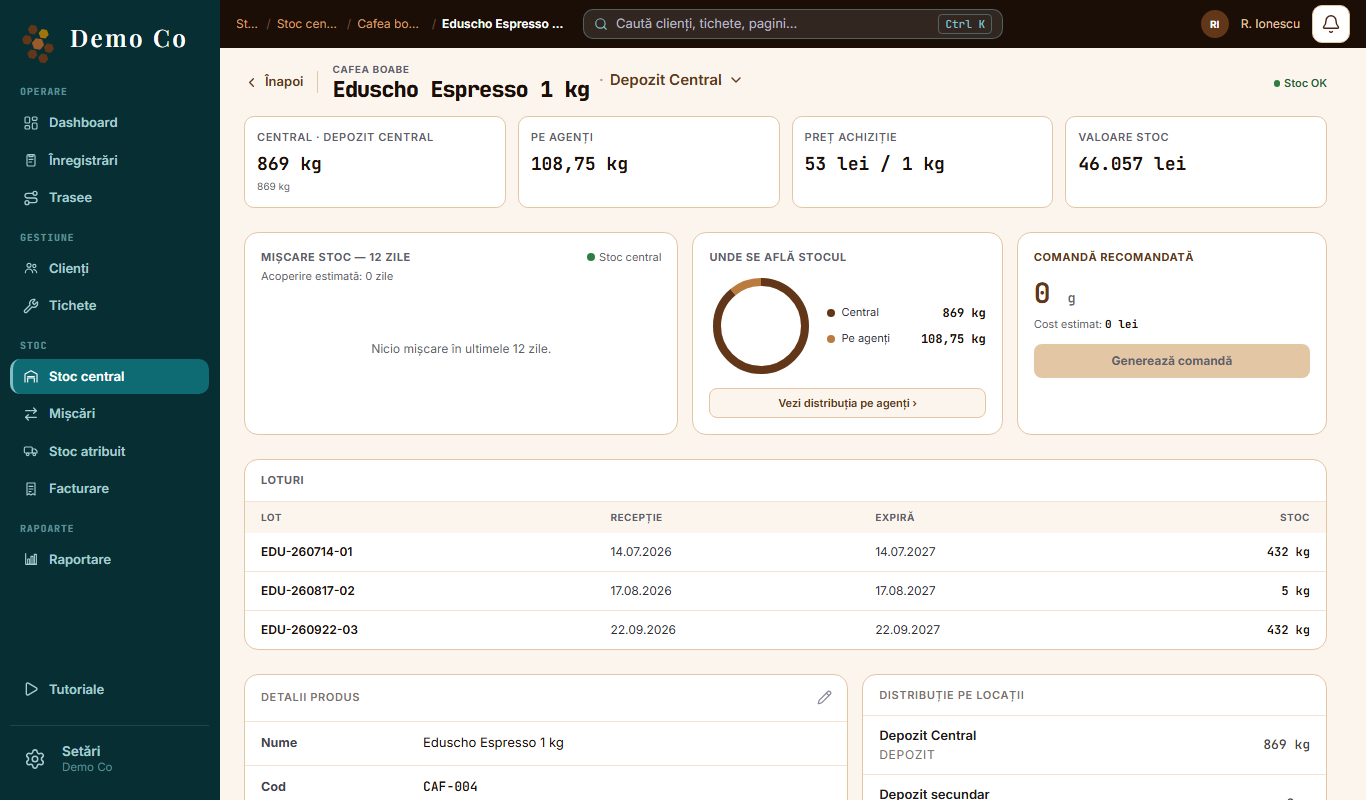
On the product page, the Lots card shows each lot number with the date received, the expiry date and the stock left.
If you do not scan
What expires first leaves first. The app picks it by itself:
- when you assign stock to an agent
- when you transfer between warehouses
- when you sell from the warehouse
- when you refill directly from the warehouse
Questions
Does scanning work without internet?
No. Scanning needs a connection.
Is the lot number required?
No. Stock without a lot shows on the page as “no lot”.
Do I see the lot number in the van or in the machine too?
No. Lot numbers are tracked only in the warehouse.
Got a question?
Message us on WhatsApp.
Contact us